Capture & Analysis Overview
The Capture & Analysis Overview is the central monitoring screen during and after a capture run. It shows the real-time status of the processing pipeline and the accumulated analysis results.
Pipeline workflow
The main area of the screen displays a pipeline workflow diagram with color-coded nodes representing the processing stages:
- Capture — microscope image acquisition for each stub
- Segmentation — automated fiber candidate detection
- ML Analysis — AI-based fiber classification and asbestos determination
Each node updates its color as work progresses (pending → in-progress → complete / error).
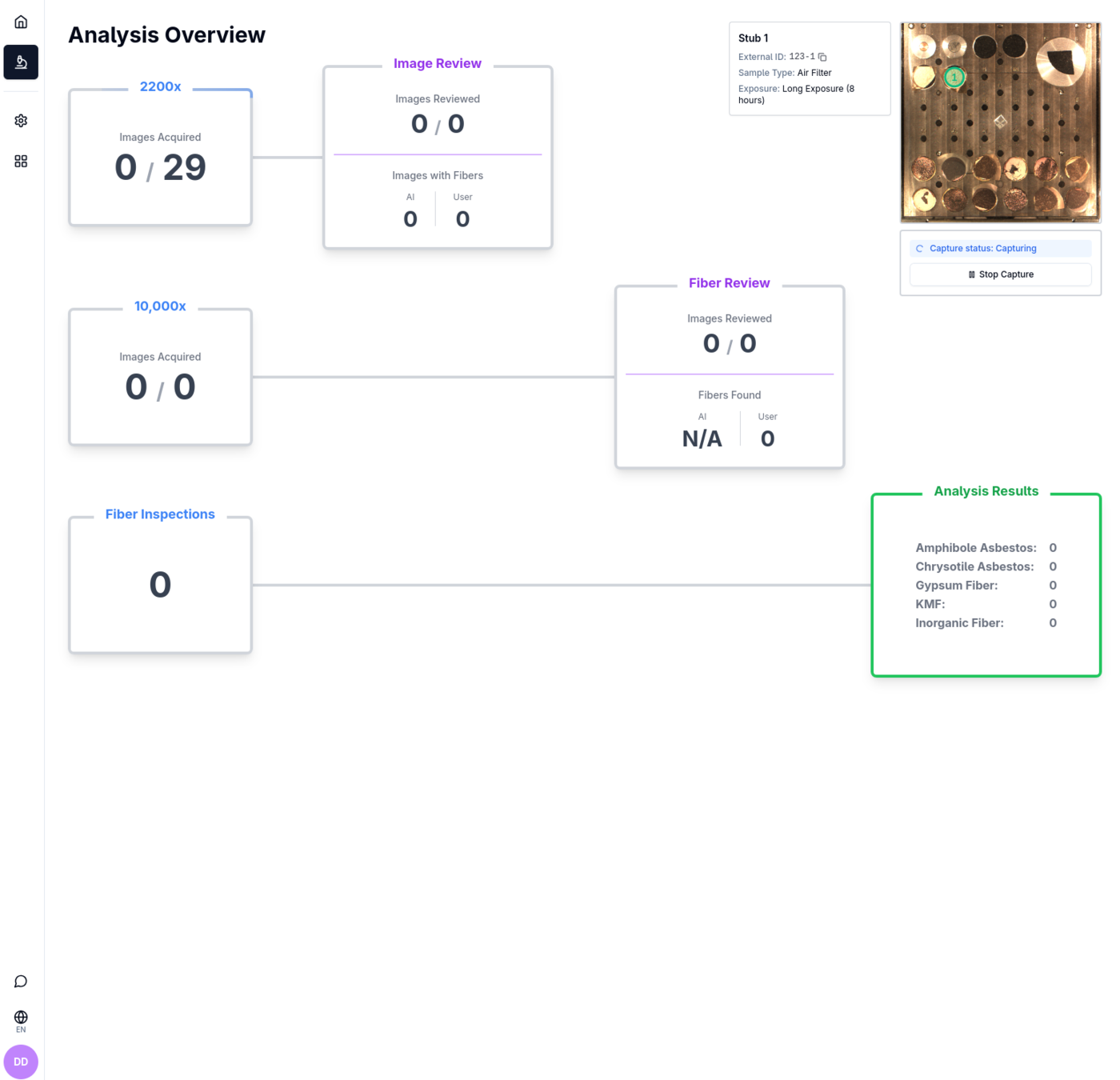
As images are processed, preliminary results appear in the Results section below the pipeline diagram.
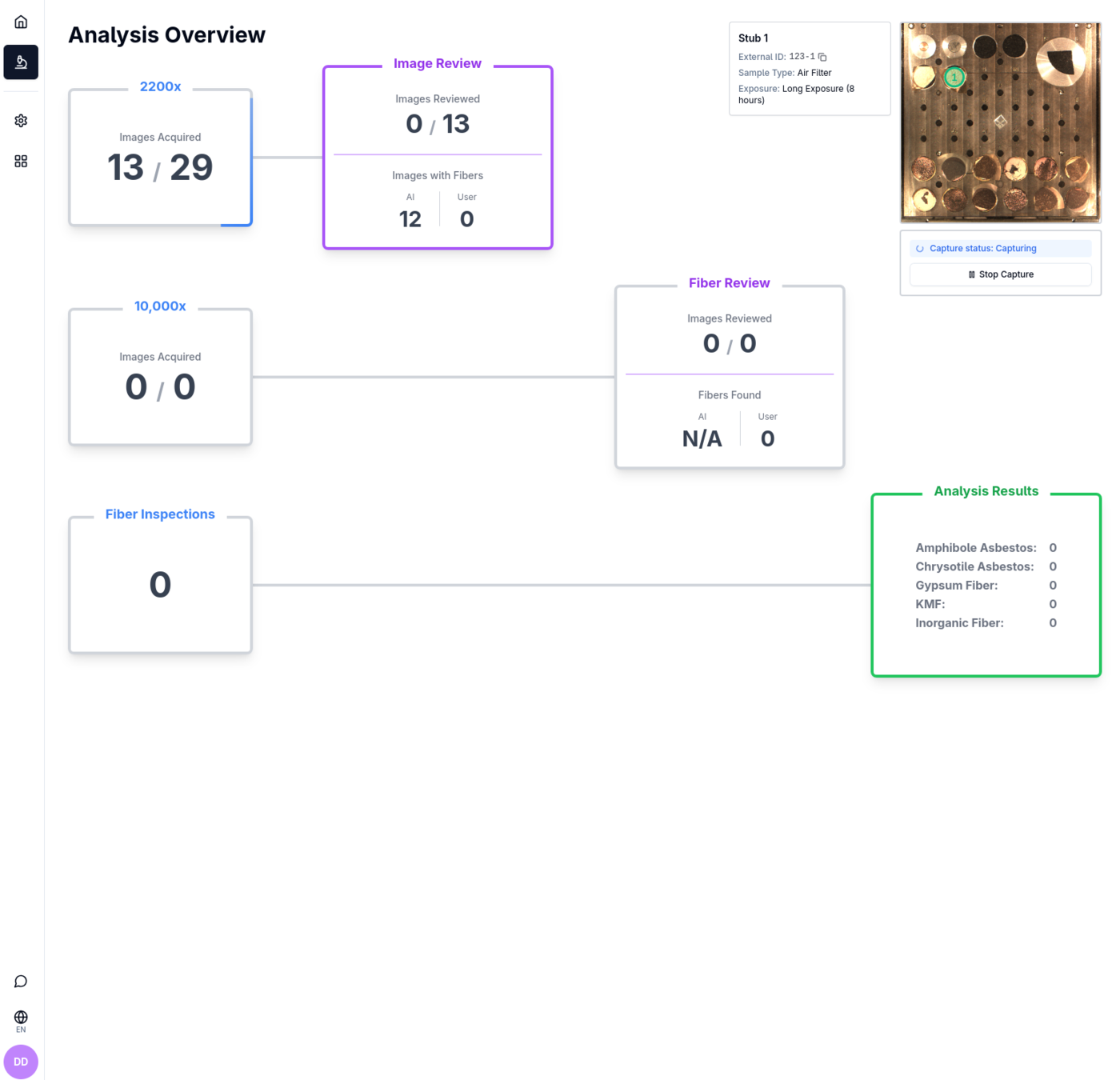
Floating panels
Three panels are anchored to the top-right of the screen:
Stage Viewer
Displays a thumbnail of the stage image with the selected stub regions highlighted. Click a region to switch the metadata panel and pipeline view to that stub.
Stub Metadata
Shows the configured properties (Sample Type, Sample ID, weight, etc.) for the currently selected stub.
Capture Controls
Provides Pause and Resume buttons to control the ongoing capture job without leaving this screen.
Grouping mode
A toggle lets you switch the pipeline and results view between two workflow modes:
| Mode | Description |
|---|---|
| Air Filter & Dust | Standard workflow for air filter and dust samples |
| Material | Workflow optimized for suspension and powder material samples |
Results
The results section reports:
- Fiber count — number of fibers identified in the analyzed images
- Asbestos determination — whether asbestos-positive fibers were detected
- x10000 magnification fibers — fiber count from high-magnification images reviewed by the operator
Navigation
| Button | Destination |
|---|---|
| Review Raw Images | Opens Review Raw Images for manual assessment of captured microscope images |
| Inspect Further | Opens the Inspect Further view for detailed fiber marking on flagged images |
No active capture job
If no capture job is currently running, the screen shows:
"No capture job currently running"
Click Start New Capture Job to return to the Select Samples screen and begin a new run.