Configure Samples
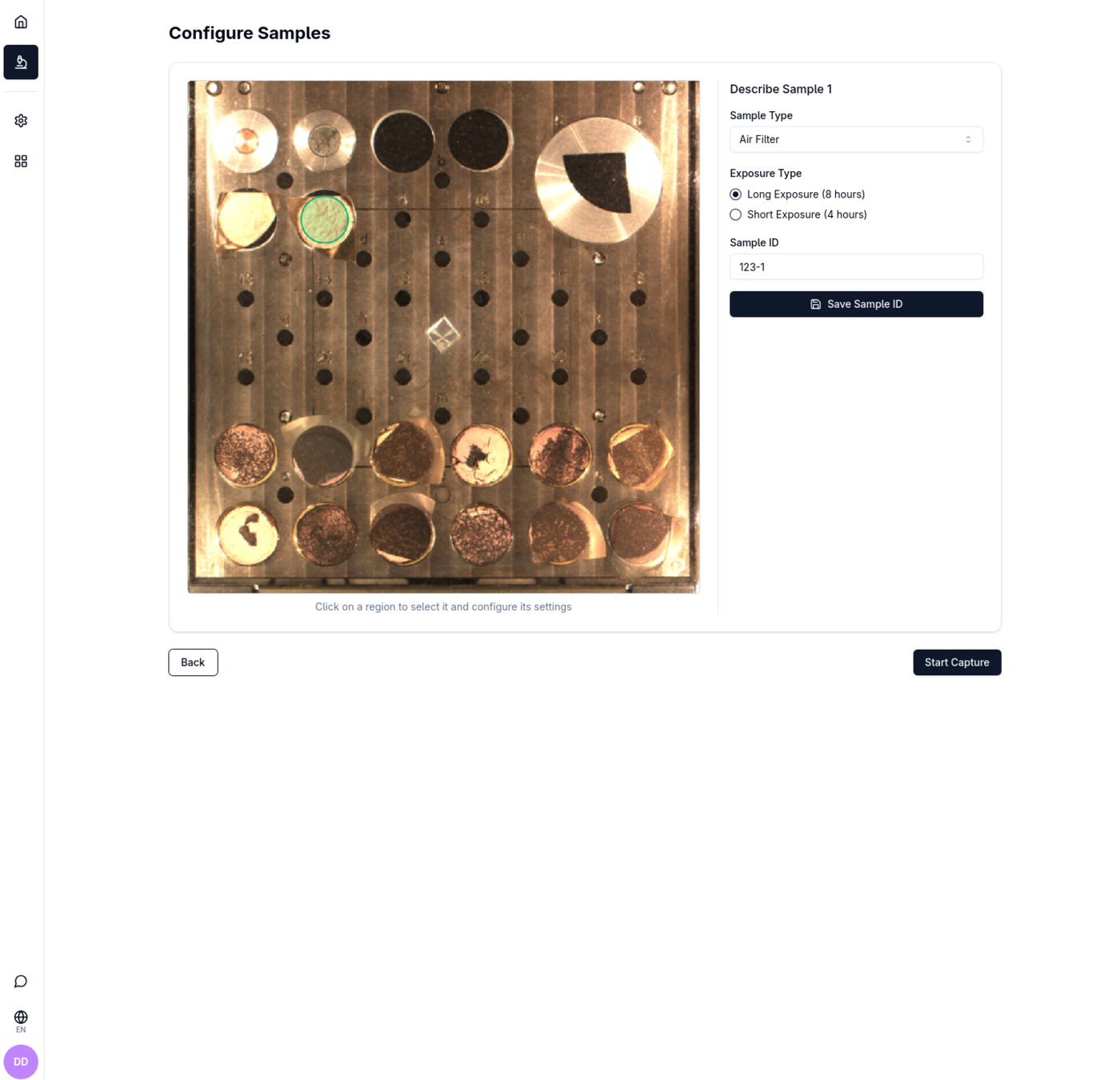
The Configure Samples screen describes the physical properties of each selected stub region and assigns a Sample ID before the capture job starts.
The layout is split into two columns:
- Left — interactive stage canvas for selecting regions
- Right — configuration panel for the selected region
Selecting a region to configure
Click a region on the canvas to select it for configuration.
| Visual | Meaning |
|---|---|
| Green circle (thick border) | Currently selected region |
| Blue circle (thin border) | Unselected region |
The right panel title updates to "Describe Sample N" where N is the region number.
Sample properties
Sample Type
Choose the type of material on the stub from the Sample Type dropdown:
- Air Filter
- Dust
- Material
The fields below the dropdown change based on your selection.
Air Filter options
| Field | Options |
|---|---|
| Exposure Type | Long Exposure / Short Exposure |
Material options
| Field | Options / Input |
|---|---|
| Material sample type | Suspension / Powder |
| Weight (kg) | Numeric input (step 0.001, minimum 0) — only shown when Suspension is selected |
Sample ID
Each region must be assigned a Sample ID that links it to a record in the external laboratory system.
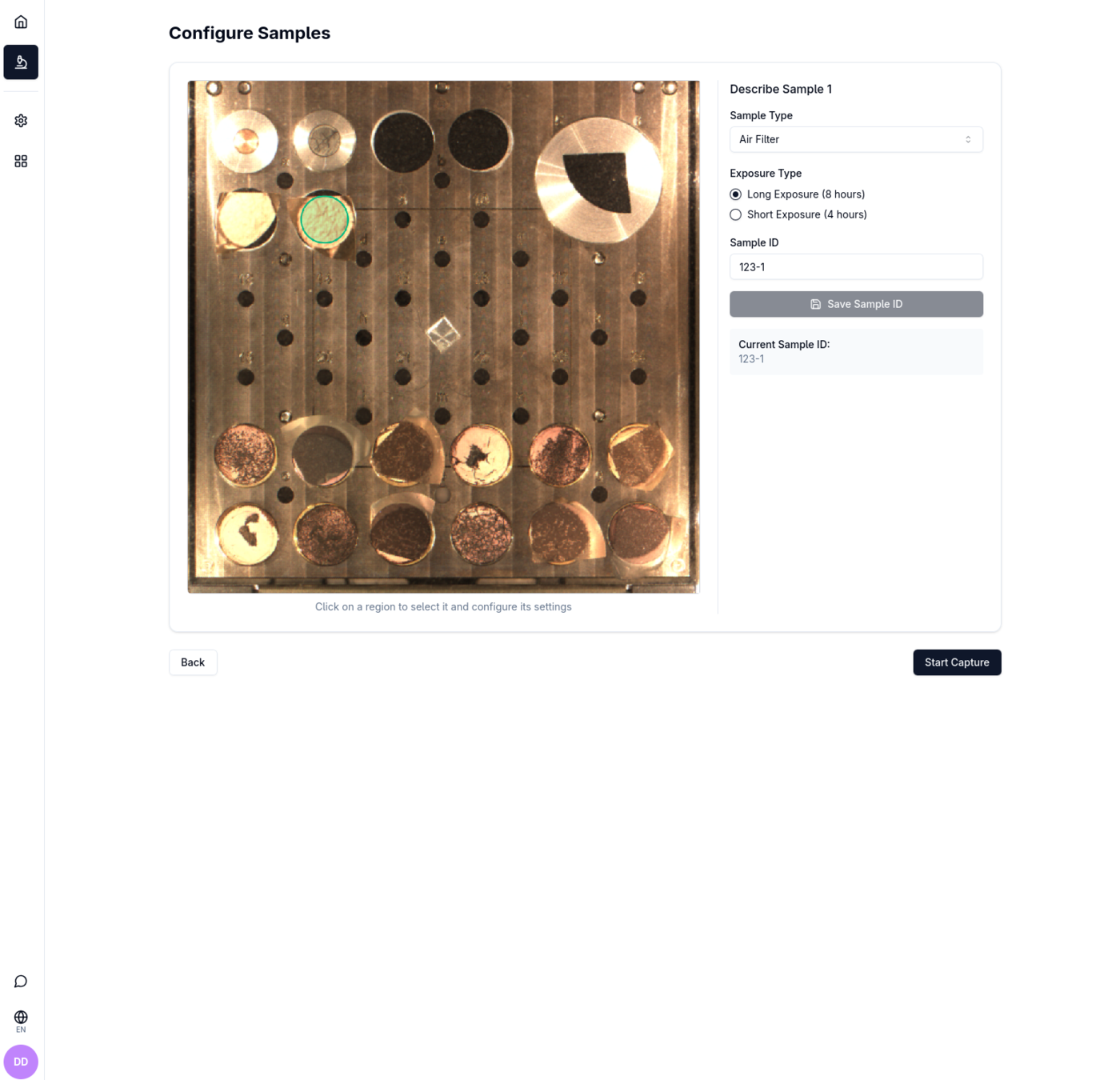
- Type in the Sample ID field. The app shows an autocomplete dropdown with up to 15 matching IDs from the server cache.
- Select a suggestion or finish typing your own ID.
- Click Save Sample ID to confirm. The saved ID appears in a card below the input.
If your search matches more than 15 results, a "More results…" hint is shown. Narrow your search term to see more specific suggestions.
The Save Sample ID button is disabled until the field contains at least one character.
Starting the capture
After all regions are configured:
| Button | Action |
|---|---|
| Back | Returns to Select Samples |
| Start Capture | Validates configuration and starts the capture job, then navigates to Capture & Analysis Overview |
You do not need to configure every region before starting. Only the regions that have been configured with a Sample ID and sample type will be captured correctly. Unconfigured regions will still appear in the capture job but without metadata.