Connection Setup
The Connection Setup screen is step 1 of 2 in the initial setup wizard. It configures the connection to the microscope server.
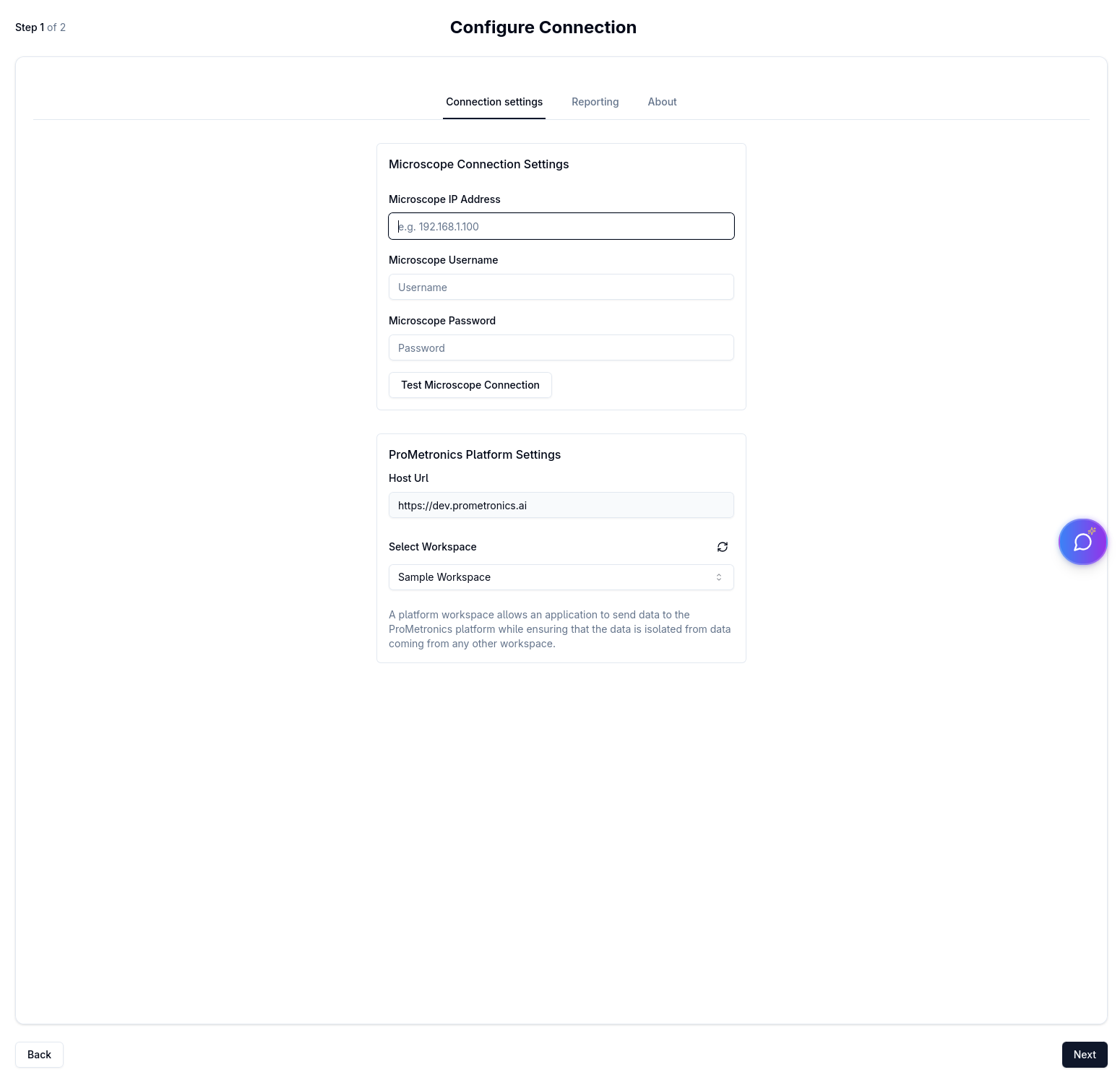
When this screen appears
This screen is shown the first time you log in, or whenever a previously cached connection can no longer be established.
Configuration fields
The embedded Connection Settings form contains:
- Server hostname / IP — address of the microscope control server
- Port — network port the server listens on
- Username — microscope login username
- Password — microscope login password
Navigating the wizard
| Button | Action |
|---|---|
| Back | Returns to the Login screen and clears the connection cache |
| Next | Validates the connection and proceeds to Stage Configuration |
The Next button shows a loading spinner while the connection is being validated.
Connection errors
If the connection attempt fails, an error dialog is shown:
- "Connection Failed" — the microscope server could not be reached or rejected the credentials.
- Proceed Anyway — skip the validation and continue to the next step. Use this if the microscope is temporarily unavailable but you still want to configure the stage.
- Cancel — dismiss the dialog and correct the settings before retrying.
- "Configuration Error" — a general configuration problem was detected. Only a Cancel / OK button is shown; the issue must be resolved before proceeding.
:::tip Proceeding with a failed connection If you choose Proceed Anyway, downstream features that require a live microscope connection (image capture, stage image loading) will not work until a valid connection is established. :::