Dashboard
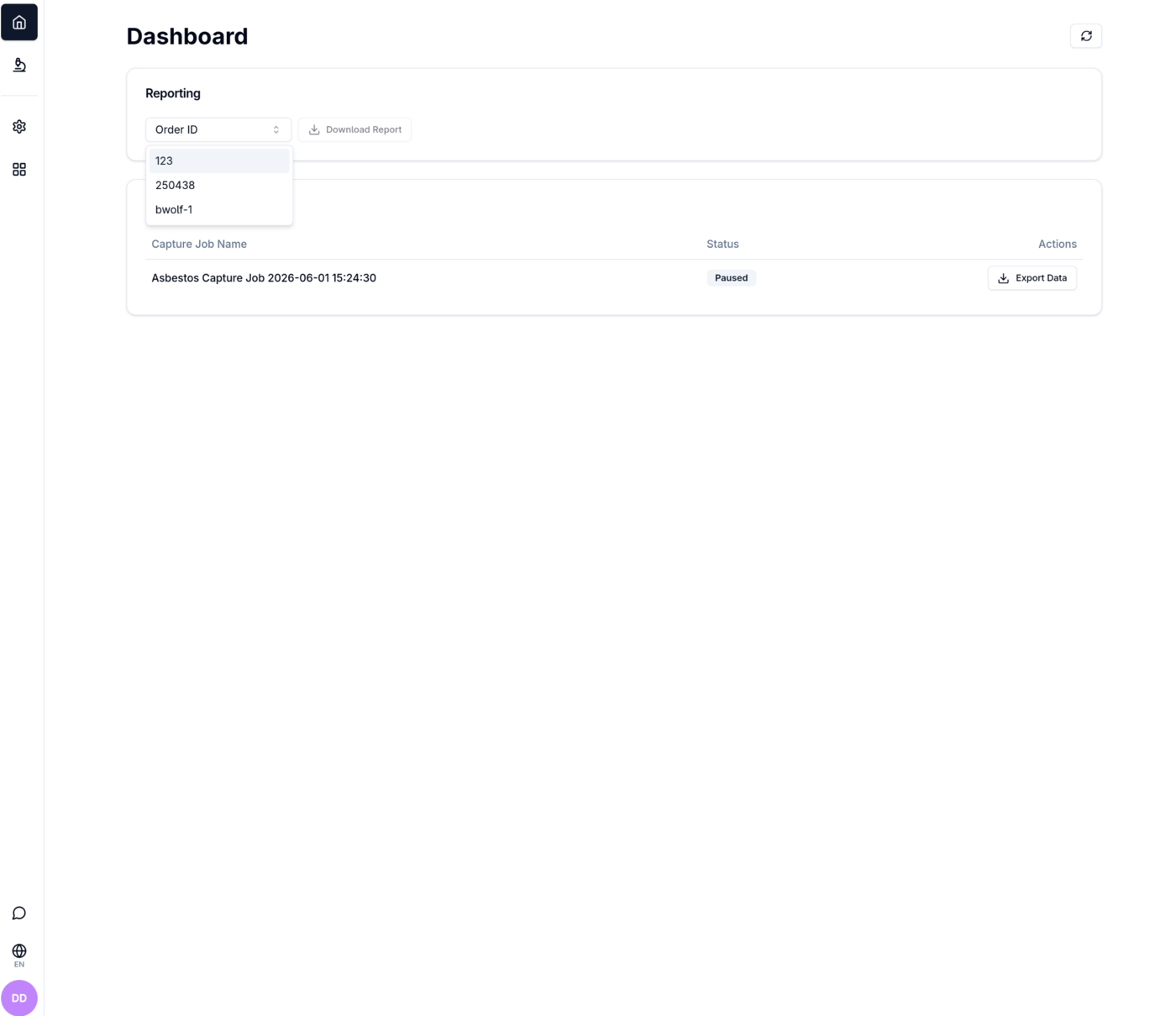
The Dashboard is reached via the home icon in the navigation sidebar. It provides two functions: downloading analysis reports for a specific order and exporting raw capture job data.
Reporting
The Reporting card generates a formatted analysis report for a selected order.
| Control | Description |
|---|---|
| Order ID dropdown | Select the order to report on. The list is populated from the platform. |
| Download Report button | Generates the report using the template configured in Settings → Reporting and saves it to the configured output directory. Shows a spinner while generating. Disabled until an Order ID is selected. |
On success, a toast notification appears with an Open Location action that reveals the generated file in the system file explorer.
Capture Jobs
The Capture Jobs table lists all capture job groups available for export, with three columns:
| Column | Description |
|---|---|
| Capture Job Name | Auto-generated name including the job date and time (e.g. Asbestos Capture Job 2026-06-01 15:24:30) |
| Status | Current pipeline status badge — Completed, In Progress, Paused, Failed, Cancelled, or Not Started |
| Actions | Export Data button — generates a raw data export for that job group |
Click the refresh icon (top right of the page) to reload the job group list.
Exporting data
Clicking Export Data on a job group triggers the export. If an export has already been generated for that job group, a confirmation dialog asks whether to overwrite the existing file or keep it.
On success, a toast notification appears with an Open Location action that reveals the exported file in the system file explorer.
Pagination
When there are more job groups than fit on one page, pagination controls appear below the table: first, previous, current page number, next, and last.