Login
The login screen is the entry point of the Asbest Scan App. It authenticates you against the ProMetronics platform before granting access to the capture workflow.
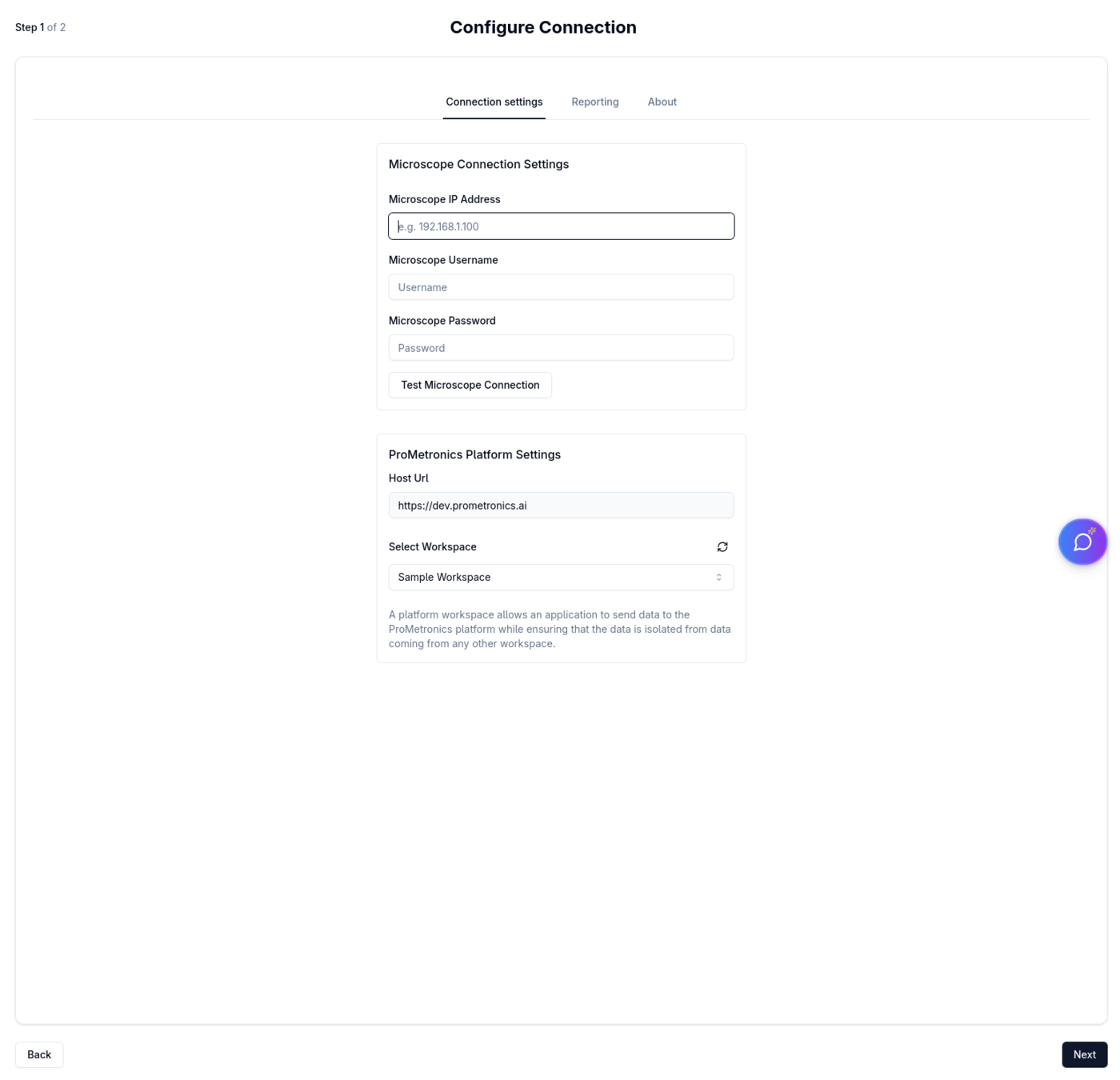
When the app is started for the first time it shows the Configure Connection wizard (Step 1 of 2). This is where you establish the connections the app needs before any capture work can begin.
Microscope Connection Settings
| Field | Description |
|---|---|
| Microscope IP Address | IP address of the SEM/microscope control computer (e.g. 192.168.1.100) |
| Microscope Username | Login username for the microscope software |
| Microscope Password | Login password for the microscope software |
Click Test Microscope Connection to verify the credentials without leaving the screen. A green checkmark confirms success; a red X indicates a failed attempt.
ProMetronics Platform Settings
| Field | Description |
|---|---|
| Host Url | URL of the ProMetronics platform (read-only, set during login) |
| Select Workspace | The platform workspace to send data to. Click the refresh icon next to the label to reload the workspace list. |
A workspace isolates captured data from other workspaces on the same platform instance.
Navigating the wizard
| Button | Action |
|---|---|
| Back | Returns to the platform login screen |
| Next | Saves the connection settings and proceeds to Stage Configuration (Step 2 of 2) |
The Next button shows a loading spinner while the connection is being validated.
Connection errors
If validation fails when clicking Next, an error dialog appears:
- "Connection Failed" — the microscope could not be reached or rejected the credentials.
- Proceed Anyway — continue to the next step without a working microscope connection. Capture features will not be available until the connection is fixed.
- Cancel — dismiss the dialog and correct the settings.
- "Configuration Error" — a general configuration problem; only an OK button is shown and the issue must be resolved before proceeding.
On subsequent app starts the connection settings are restored from cache. The Configure Connection screen is only shown again if a cached connection can no longer be established.