Stage Configuration
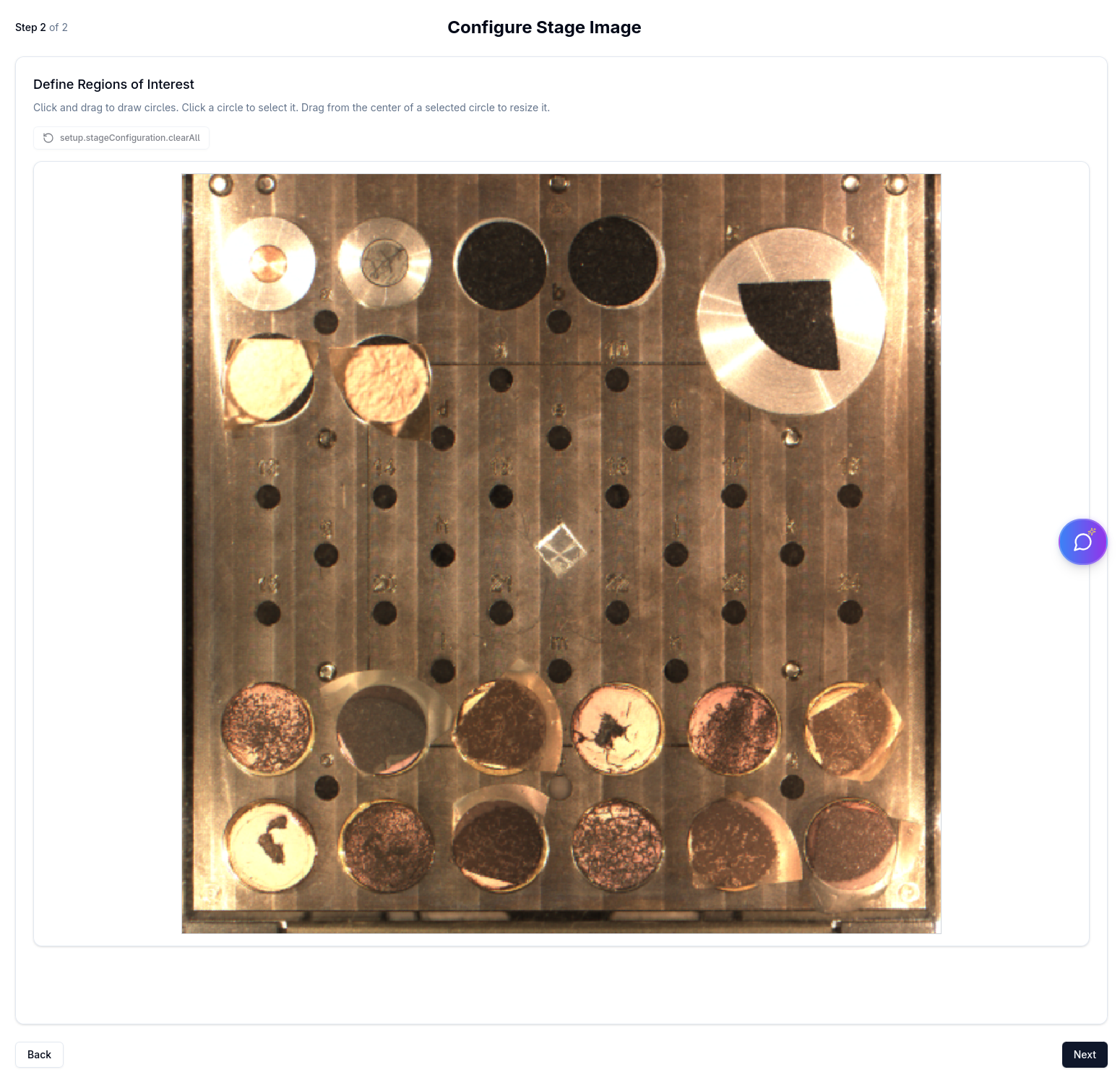
The Stage Configuration screen is step 2 of 2 in the setup wizard. It loads an overview image of the microscope stage and lets you draw the circular stub regions that will be captured.
Loading the stage image
When the screen opens, the app fetches the current stage image from the microscope.
A spinner and the message "Loading stage image…" are displayed while the image is being retrieved.
If loading fails
An error card is shown with:
- A red error icon and the title "Stage configuration failed"
- The specific error message
- A Retry Setup button (shows a spinner while retrying)
Drawing stub regions
Once the stage image has loaded, an interactive 912 × 912 px canvas is displayed.
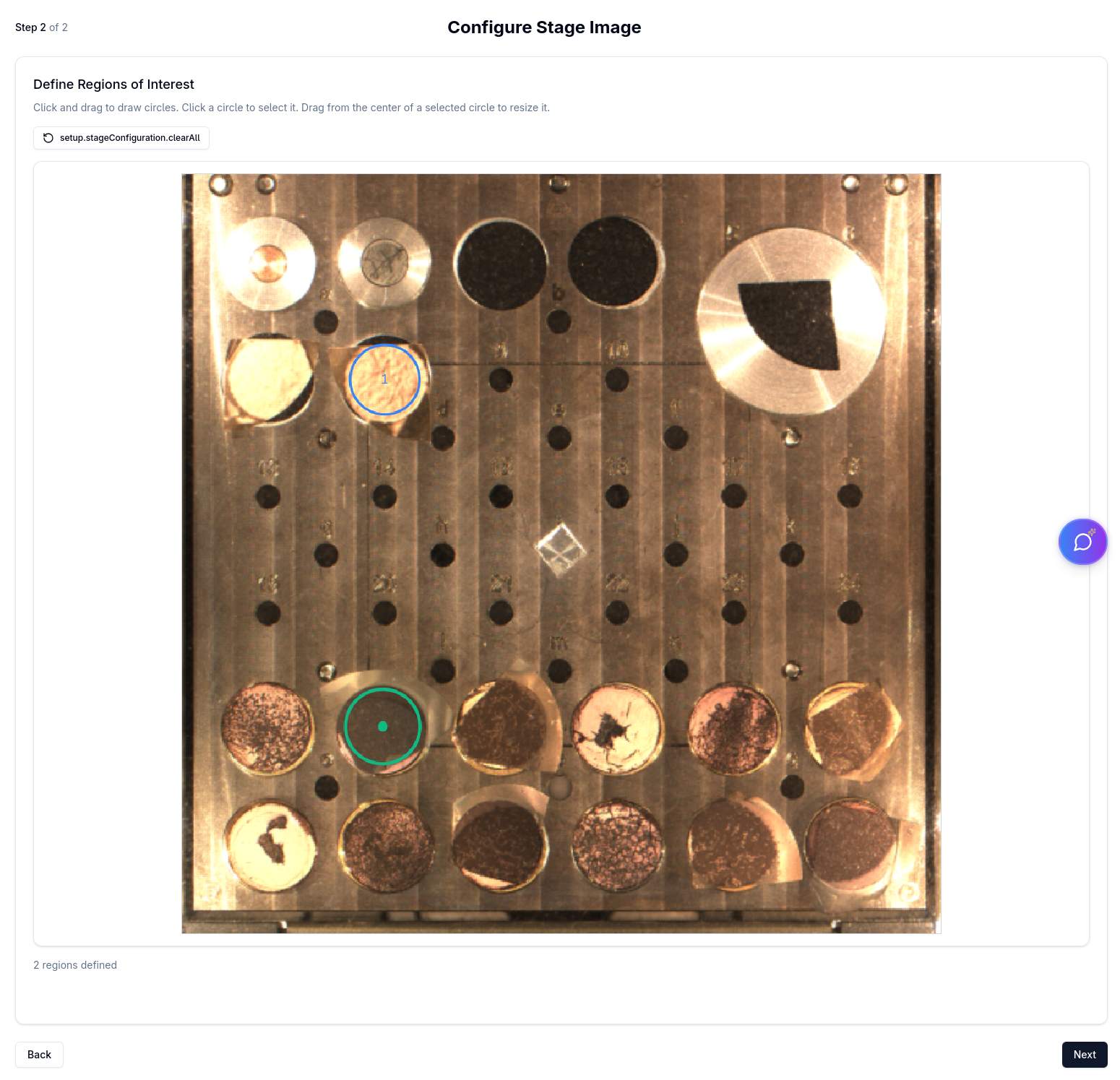
Click anywhere on the canvas to place a circular region (stub). Each click creates a new circle at that position.
Canvas controls
| Control | Description |
|---|---|
| Clear All (with region count) | Removes every region from the canvas. Disabled when no regions exist. |
| Clear Selected | Removes only the currently selected region. Only shown when a region is selected. |
Region selection
Click an existing region to select it. Selected regions are highlighted in green. The region count and selection status are shown below the canvas controls.
Finishing setup
| Button | Action |
|---|---|
| Back | Returns to Connection Setup |
| Next | Saves the stage configuration with the drawn regions and proceeds to Select Samples |
| Skip | Skips region drawing and proceeds directly to Select Samples without saving a new configuration |
:::info Saving configurations Each time you complete this step a new named stage configuration is saved to the platform. You can manage saved configurations later from Settings → Stage Configurations. :::