Stage Configurations
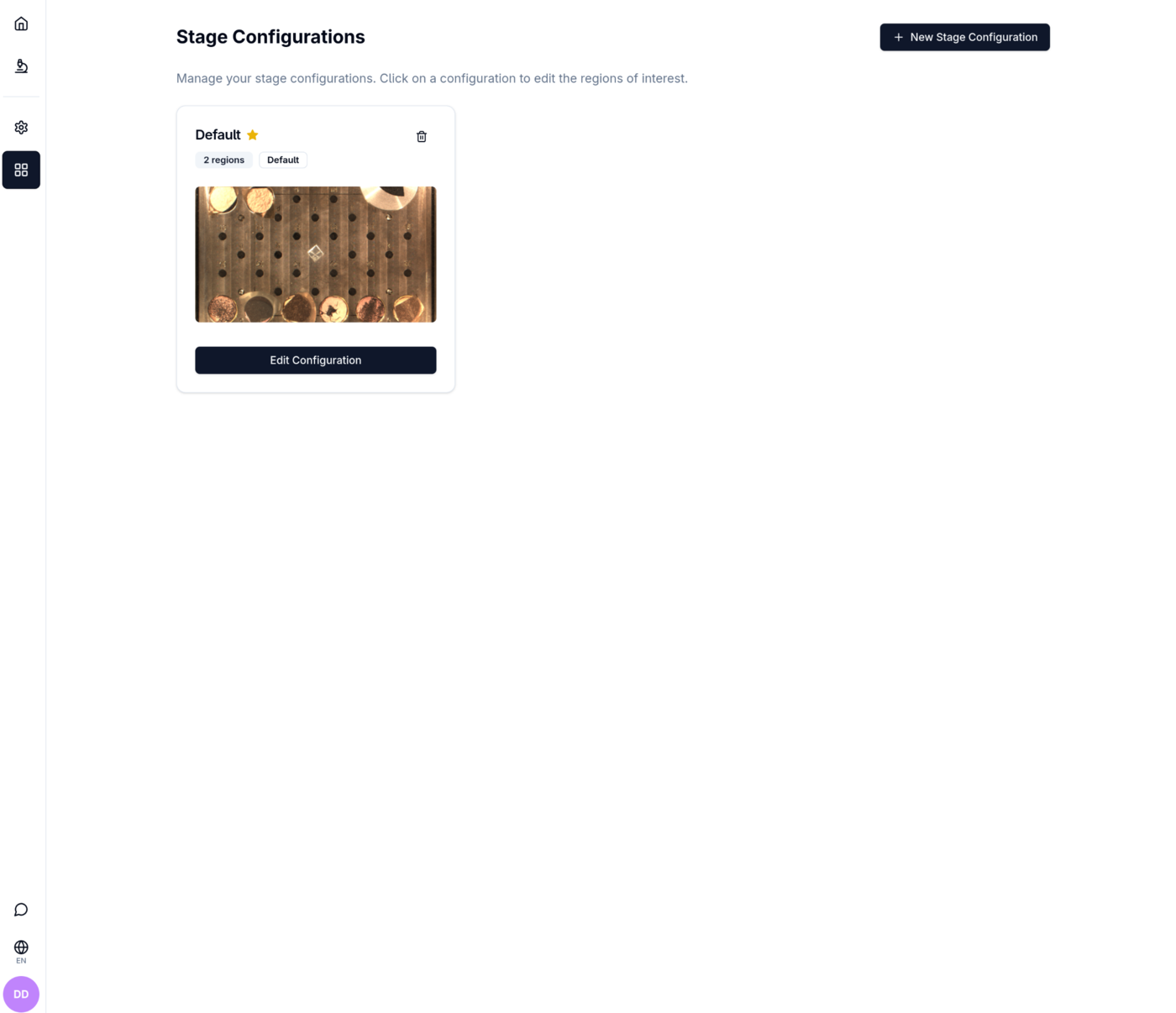
The Stage Configurations screen is reached via the grid icon (four rectangles) in the navigation sidebar. It lists all saved stage configurations and lets you create, edit, or delete them.
Working distance
Please ensure that your stage is configured to 7mm of working distance.
Configuration list
Each saved configuration is shown as a card containing:
- Name — the configuration name. The default configuration is marked with a yellow star and a Default badge.
- Region count badge — number of stub regions defined in this configuration.
- Stage image thumbnail — a preview of the stage image captured when the configuration was created.
- Edit Configuration button — opens the editor for that configuration.
- Delete icon (trash) — deletes the configuration after a confirmation dialog. The built-in
defaultconfiguration cannot be deleted. - Set as Default icon (star) — promotes a non-default configuration to the default. Only shown on non-default cards.
Empty state
If no configurations exist yet, an empty state card is shown with a camera icon and a prompt to create the first configuration.
Creating a new configuration
Click + New Stage Configuration (top right). The app fetches the current stage image from the microscope, creates a new configuration entry, and opens the editor immediately.
Editing a configuration
Clicking Edit Configuration on a card opens the Edit Stage Configuration screen.
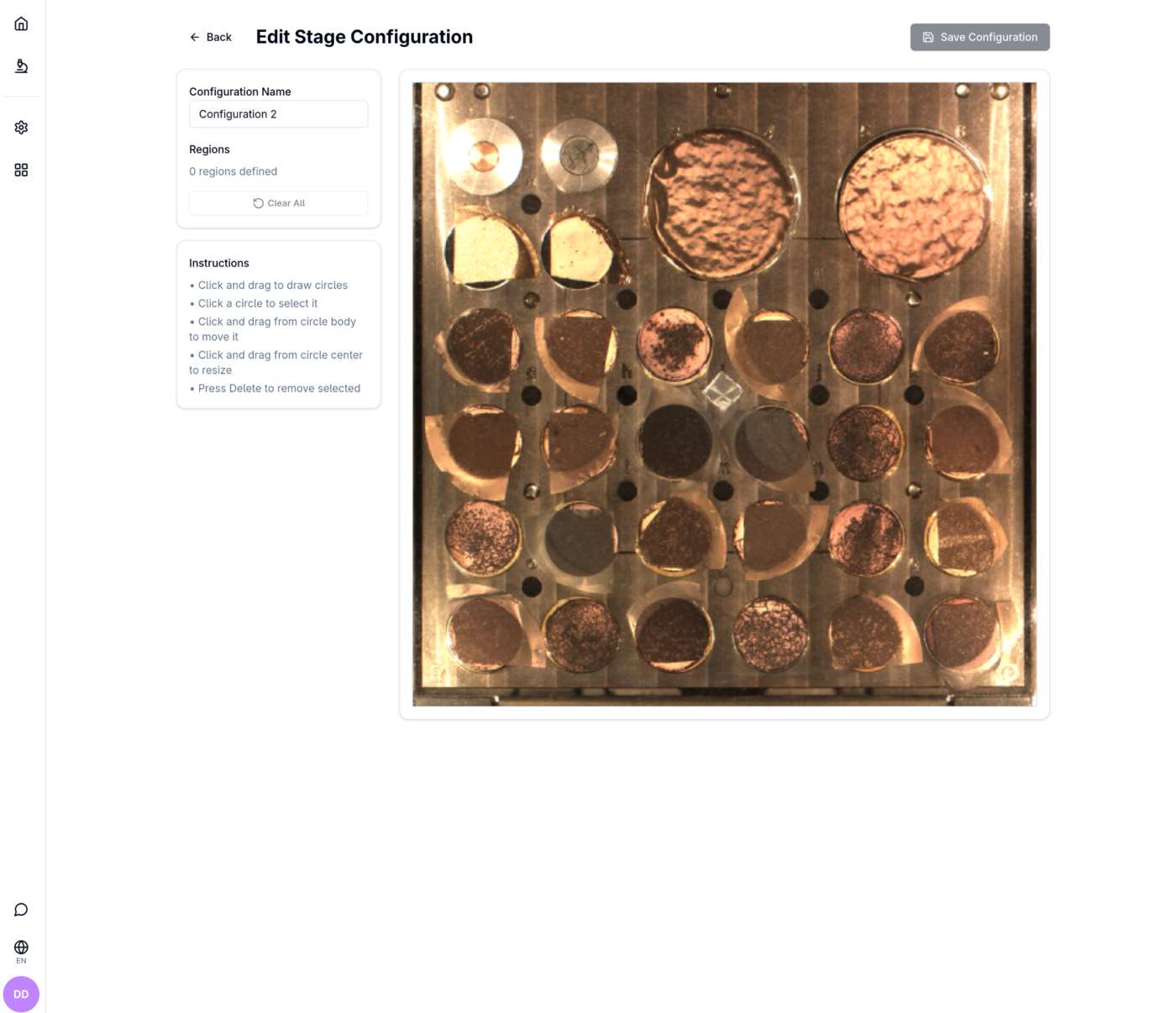
The screen is split into a narrow left panel and a large canvas on the right.
Left panel
| Field / Control | Description |
|---|---|
| Configuration Name | Editable text field for the configuration name |
| Regions | Shows the current region count |
| Clear All | Removes all regions from the canvas. Disabled when no regions exist. |
| Delete | Removes the currently selected region. Only shown when a region is selected. |
An Instructions card below the controls lists the canvas interaction shortcuts:
- Click and drag to draw circles
- Click a circle to select it
- Click and drag the circle body to move it
- Click and drag from the circle center to resize it
- Press Delete to remove the selected circle
Canvas
The stage image fills the right three-quarters of the screen. Drawn regions appear as numbered circles.
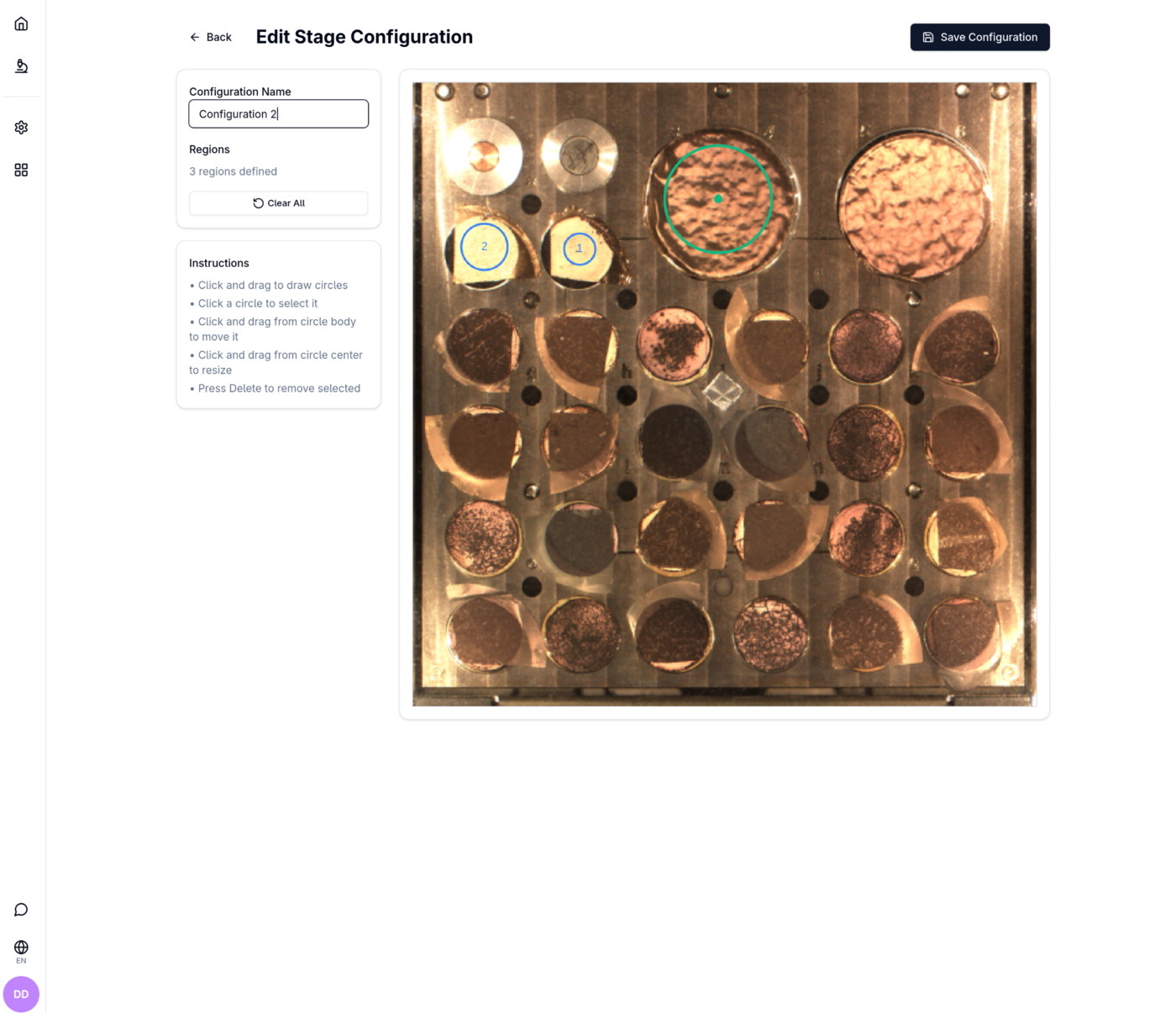
Selected circles are highlighted; their number labels help identify each stub region.
Saving
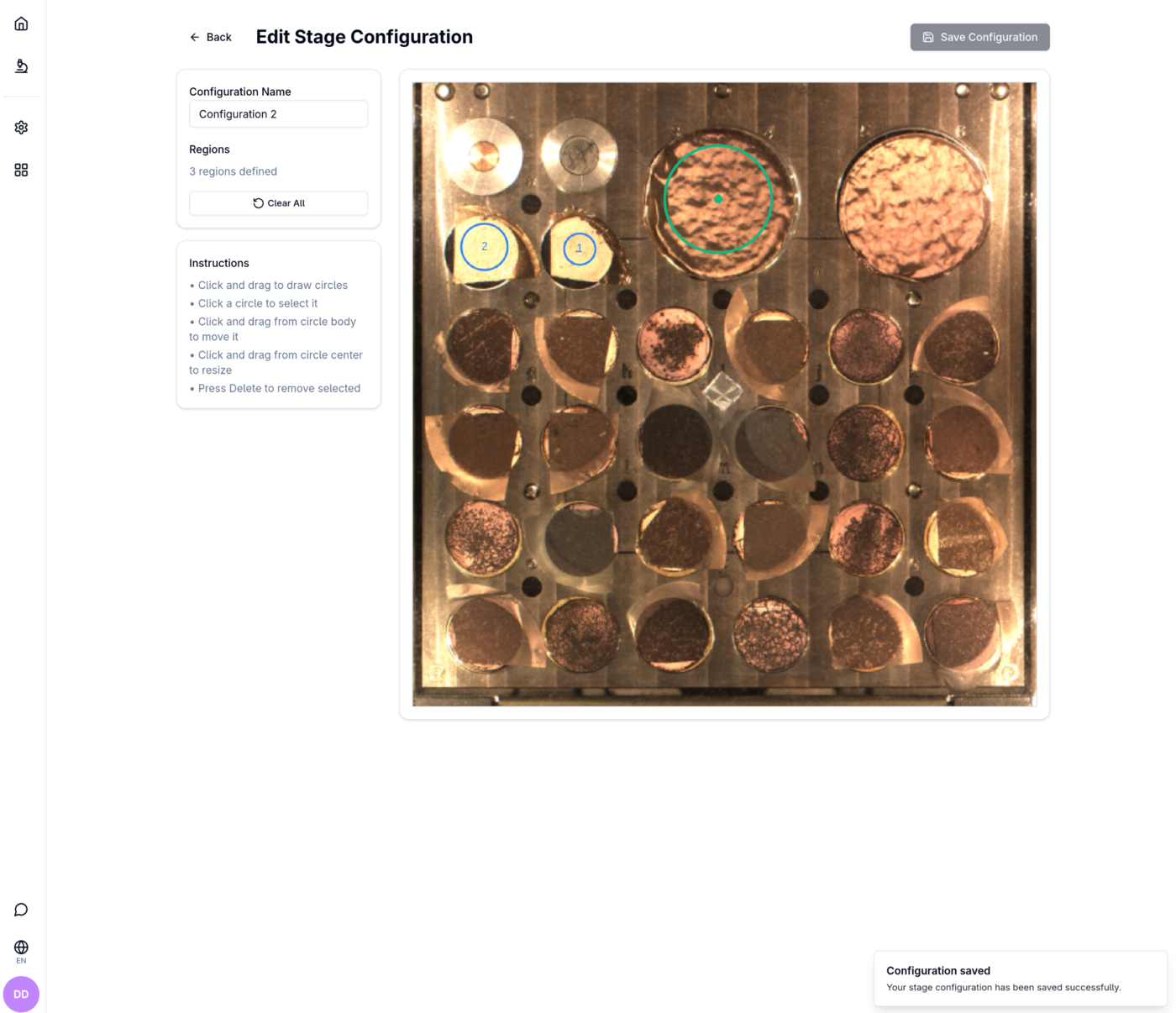
Click Save Configuration (top right) to persist changes. The button is disabled until unsaved changes exist. A "Configuration saved" toast notification appears at the bottom right of the screen on success.
Click ← Back to return to the configuration list without saving.